Installation
Virtual Environment
A virtual environment is highly recommended to isolate your project’s dependencies and prevent conflicts with other Python projects you may have. This ensures a clean and consistent environment for NekUpload.
Creating a Virtual Environment
Before installing the package, create a python environment with your desired Python version. Python versions from 3.11 onwards are required.
For Linux and macOS:
python3 -m venv myenv
source myenv/bin/activate
For Windows cmd:
python3 -m venv myenv
myenv\Scripts\activate.bat
For Windows PowerShell:
python3 -m venv myenv
myenv\Scripts\Activate.ps1
Note that on some systems, the Python executable is py or python.
Installing the Package
git clone https://gitlab.nektar.info/nektar/NekUpload
python3 -m pip install -e .[dev]
Note that this requires Python version >=3.11 and tkinter version >=8.5. This latter requirement is usually automatically satisfied as it usually comes pre-packaged with Python installations.
Checking Installation
Run pytest to check all tests are working. You may notice that some tests are skipped. This is intentional and just means that you have not obtained and stored the necessary API keys yet.
Setup for InvenioRDM Demo
API keys must be acquired. For testing, we currently utilise the InvenioRDM demo instance hosted at https://inveniordm.web.cern.ch. You will need to make an account and acquire an API key.
Since May 2025, AE Datastore also has its own test instance on https://data-dev.ae.ic.ac.uk. Note that you may require permission from the AE Datastore administrators to gain access to the developer account. Please contact Dr Chris Cantwell in the Department of Aeronautics, Imperial College London. This is the preferred testing environment, with InvenioRDM test environment slowly being deprecated as AE Datastore diverges from InvenioRDM.
Acquiring an API key
An API key is required to utilise this application. To access an API key, go to the online repository host. Login to your account and select your profile. You will see an option: Applications, as shown in the following image:
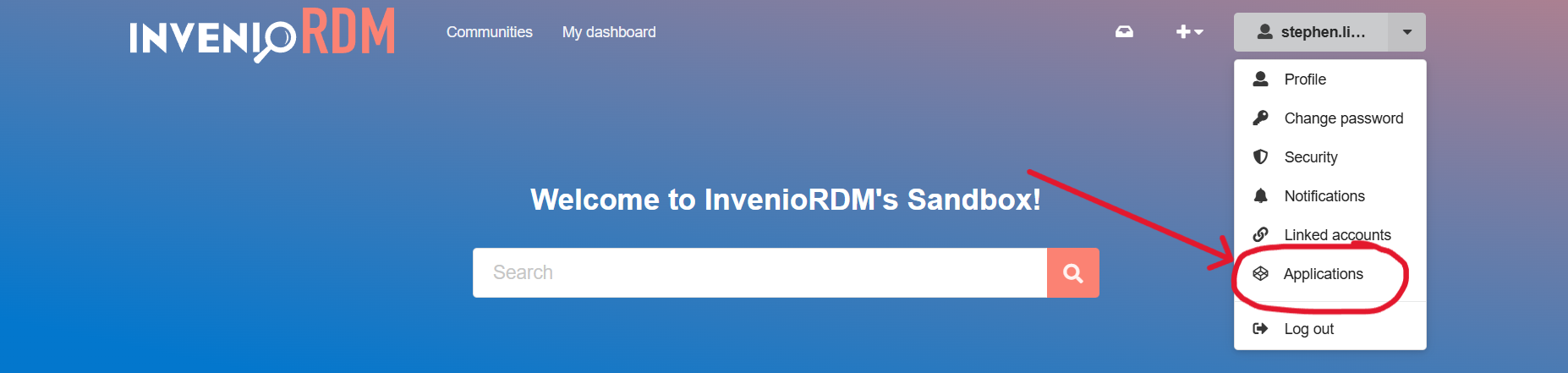
Under Personal access tokens, click new token to generate an API key. Provide it with a name, and under scopes you should select deposit:write. Then create the API key.
Tip
If you do not see the option to select deposit:write under scopes, then you already have those permissions. Continue and create the API key.
Community
For InvenioRDM test instance: A test community has been set up: TEST_NEKTAR_UPLOAD. Join this if possible, otherwise, create your own test community.
For AE Datastore Dev Instance: There is already a test community which you can test on.
Environment variables
Store the following in a .env file in the project root:
INVENIO_RDM_DEMO_URL=https://inveniordm.web.cern.ch #this is no longer necessary due to a config file
INVENIO_RDM_DEMO_TOKEN=<YOUR_API_KEY_HERE>
INVENIO_RDM_TEST_COMMUNITY_SLUG=test_nekupload #or the slug for your own test community

AE_DATASTORE_DEV_URL=https://data-dev.ae.ic.ac.uk #this is no longer necessary due to a config file
AE_DATASTORE_DEV_TOKEN=<YOUR_API_KEY_HERE>
AE_DATASTORE_DEV_COMMUNITY_SLUG=test-community
Warning
API keys should be securely managed. They should never be committed to version control and minimum privileges should be granted to accomplish the required task.