Configuring NekUpload General
NekUpload/NekData/config contains a configuration file nektar.yaml. This provides an easy way to edit Nektar++ configuration as it evolves. Currently, only solver types and field variables are supported, but it is hoped that more settings can be introduced and implemented as configuration files.
The configuration file currently allows different solvers to be specified. The equation types can then be specified under EQTYPE. The field variables associated with the equation type can also be specified for all three dimensions. You can either target all, or you have to target each equation type individually.
Warning
You cannot mix and match ALL with specific equations. Use one method or the other. Also note that yaml is extremely indent sensitive.
solvers:
# Solver names need to match enum values in NekData/data_type SolverType
- ADR Solver:
    EQTYPE:
      - Projection
      - Laplace
      - Poisson
      - Helmholtz
      - SteadyAdvectionDiffusion
      - SteadyAdvectionDiffusionReaction
      - UnsteadyAdvection
      - UnsteadyAdvectionDiffusion
      - UnsteadyReactionDiffusion
      - UnsteadyInviscidBurgers
      - UnsteadyViscousBurgers
    VARIABLES:
      - ALL: # target all above equation types
          1D: [u]
          2D: [u, v]
          3D: [u, v, w]
- Acoustic Solver:
    EQTYPE: # target specific eqtype. Note, if using this method, cannot use ALL
      - APE
      - LEE
    VARIABLES:
      - APE:
          1D: [p, c0sq, rho0, u, u0]
          2D: [p, c0sq, rho0, u, u0, v, v0]
          3D: [p, c0sq, rho0, u, u0, v, v0, w, w0]
      - LEE:
          1D: [p, rho, rho0, c0sq, gamma, rhou, u0]
          2D: [p, rho, rho0, c0sq, gamma, rhou, u0, rhov, v0]
          3D: [p, rho, rho0, c0sq, gamma, rhou, u0, rhov, v0, rhow, w0]
Configuring NekUpload GUI
The NekUpload GUI comes with presets for available online repositories and communities. This is designed to provide users with easier access to the repositories and communities without worrying about how to locate them. Developers can edit what presets are available via configuration files.
Locating Configuration Files
From the root of the repository, the configuration files can be located at NekUpload/frontend/config. This directory contains the yaml configuration files and Python code to interpret the configuration files. The Python code provides a simple interface between the configuration files and the frontend GUI.
Configuring Repository Information and Communities
The file db_targets.yaml can be configured to add repository and community informations, which will provide the user of NekUpload GUI to access different communities and repositories without worrying about the details. The configuration file uses YAML and takes the following form:
databases:
  - name: AE Datastore
    url: https://data.ae.ic.ac.uk
    communities:
      - name: Nektar++
        community_slug: nektar

  - name: InvenioRDM Demo
    url: https://inveniordm.web.cern.ch
    communities:
      - name: Test
        community_slug: test_nekupload
Tip
YAML is indentation sensitive, and indentation is 2 spaces to denote a new block. Utilise a YAML tool to help you construct the configuration. Alternatively, you can copy the pre-existing configuration file and use it as a base.
The root databases is used to denote the available databases and communities within that database. Each database should be provided with a name, followed by a url denoting where the online repository is hosted. The list of available communities that you wish to provide users can then be used specified under communities. For each provided community, you should specify the name of the community and the community_slug, which is the human-readable unique identifier of an InvenioRDM community.
Once you have edited the configuration, you can double-check the NekUpload GUI to see the changes. To see your available communities, navigate to the Settings page and you should see something similar to below (using above configuration as an example):
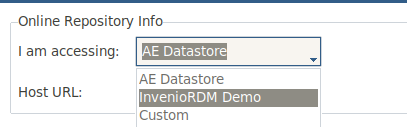
Selecting one of the repositories will lead to the target repository url being loaded in directly. Suppose AE Datastore is selected and saved in settings, you can now navigate the Upload page, where you can now see the available communities associated with the selected database:
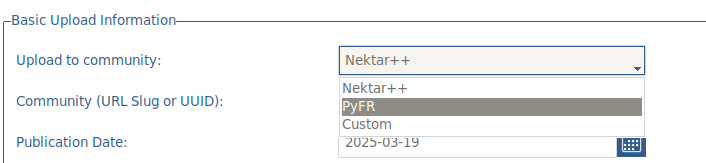
Selecting the associated community will automatically load in the related community id.
Note
The Python interface will automatically add a Custom database and a Custom community to each database to allow users to manually configure their own targets should they wish to.